Photos & Sharing
How to capture selfies, share your contact info, and manage your ShareCards.
How to take a selfie with a new contact
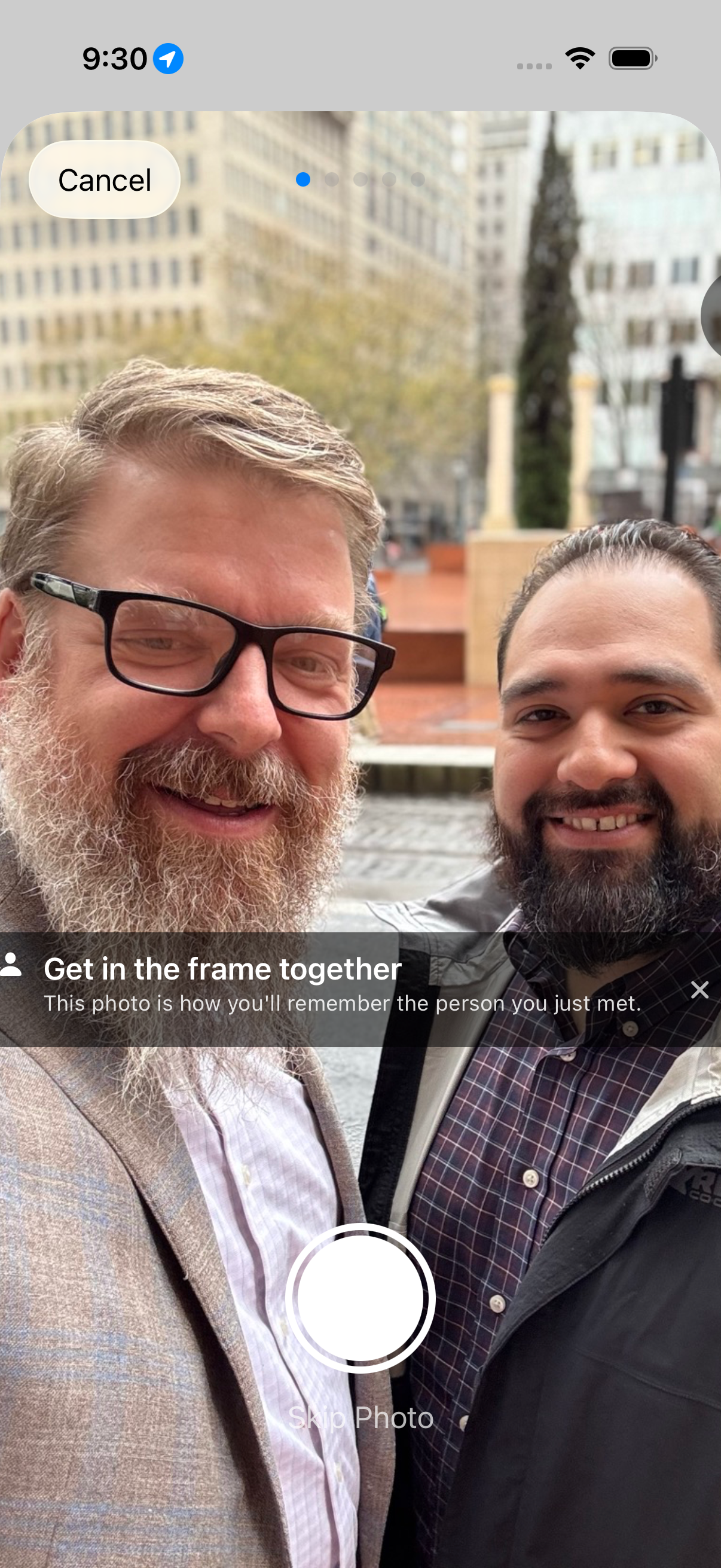
Tap the camera button in the top right. Nexus Contacts opens the camera so you can capture a selfie together — a visual memory of how you met.
Take as many photos as you like, or skip this step entirely if you prefer.
How the share flow works
After taking a selfie, the share flow walks you through four steps:
When you send someone their copy, it goes through Messages, which carries both the photo and your details to someone who is not already in your address book.
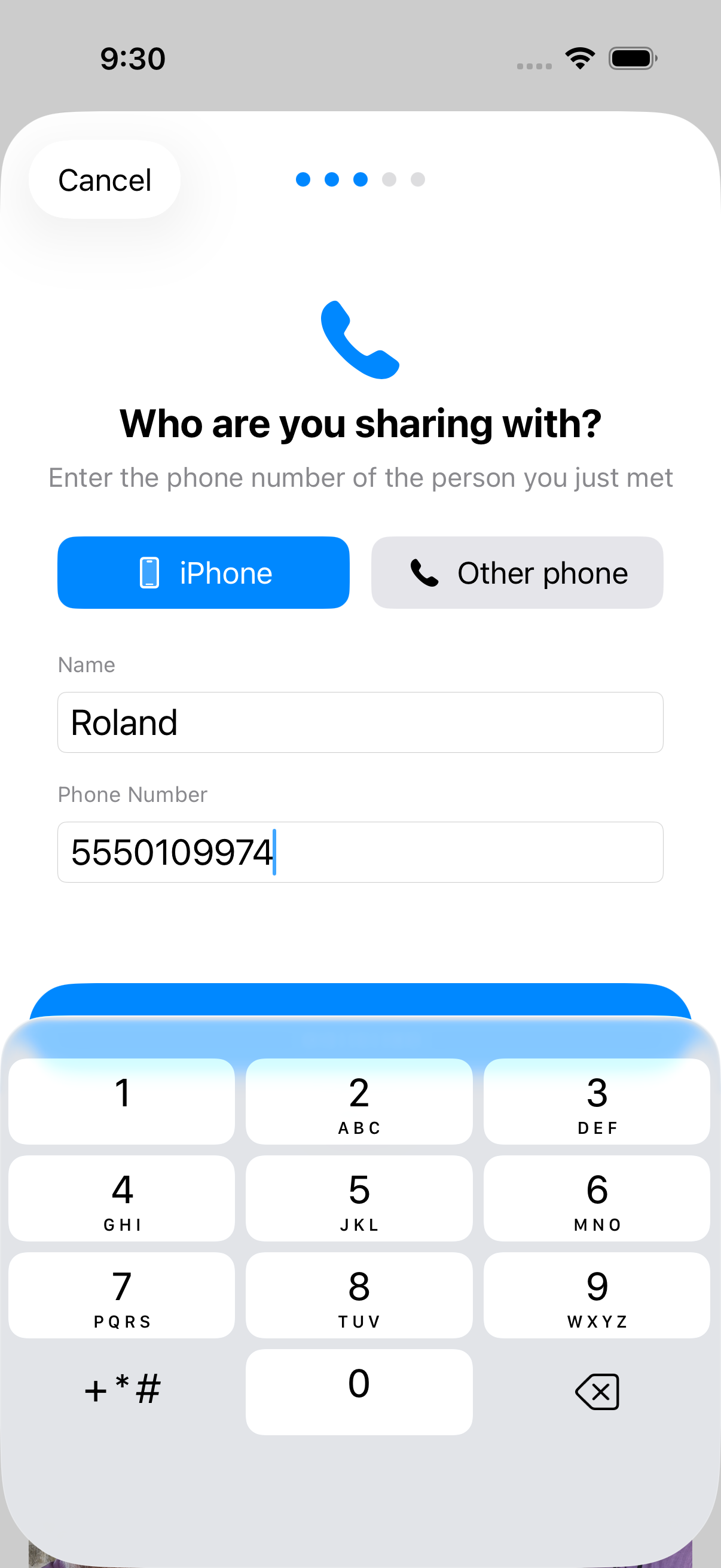
1. Enter their phone number
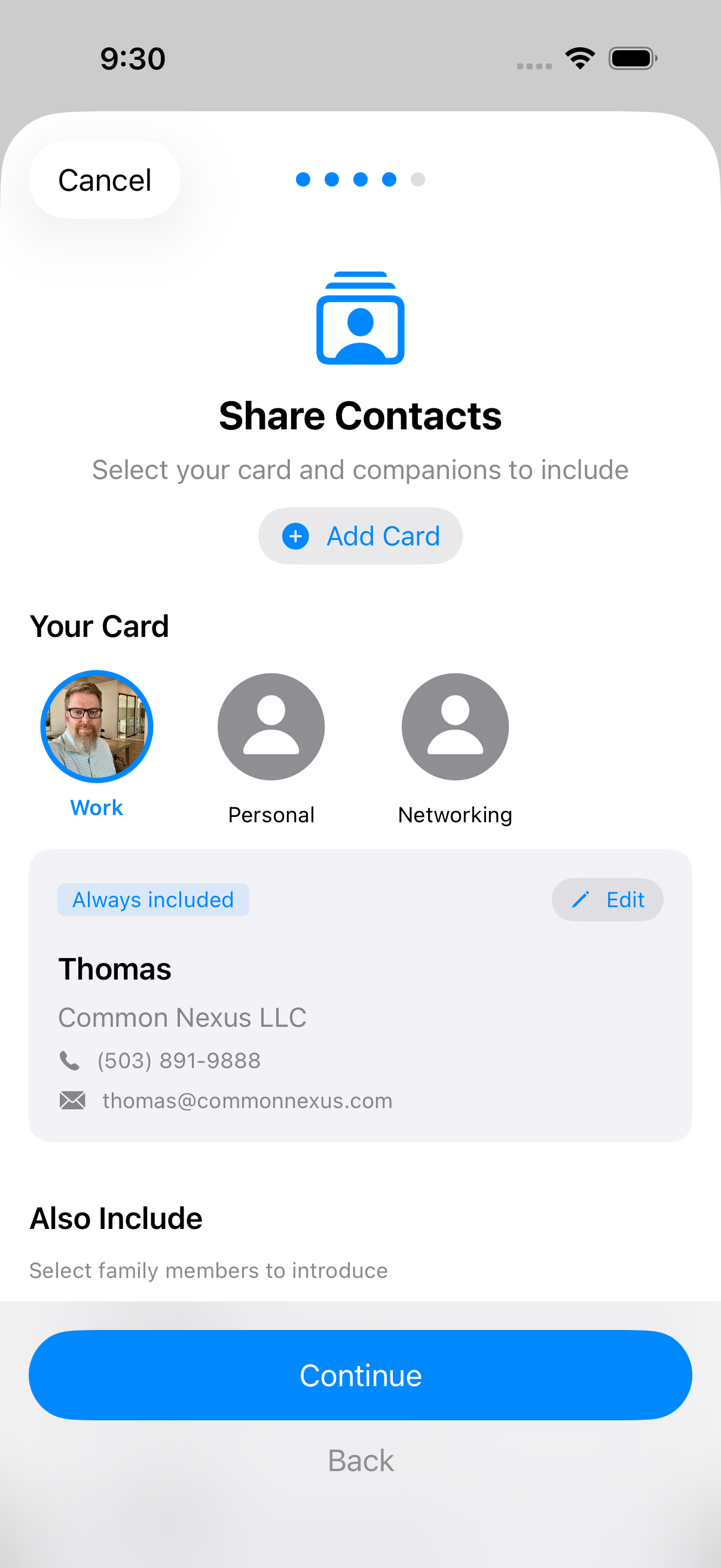
2. Pick which ShareCard to send
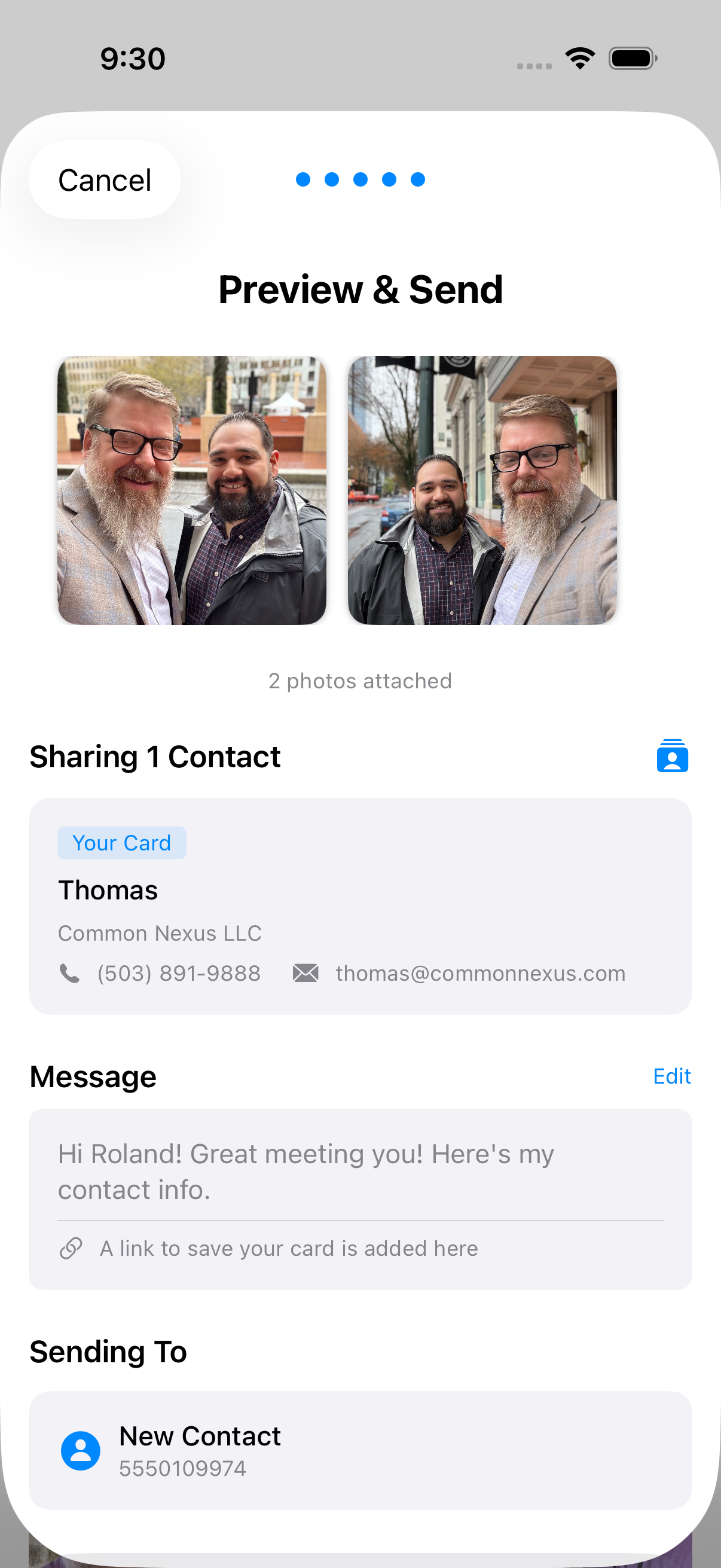
3. Preview and send
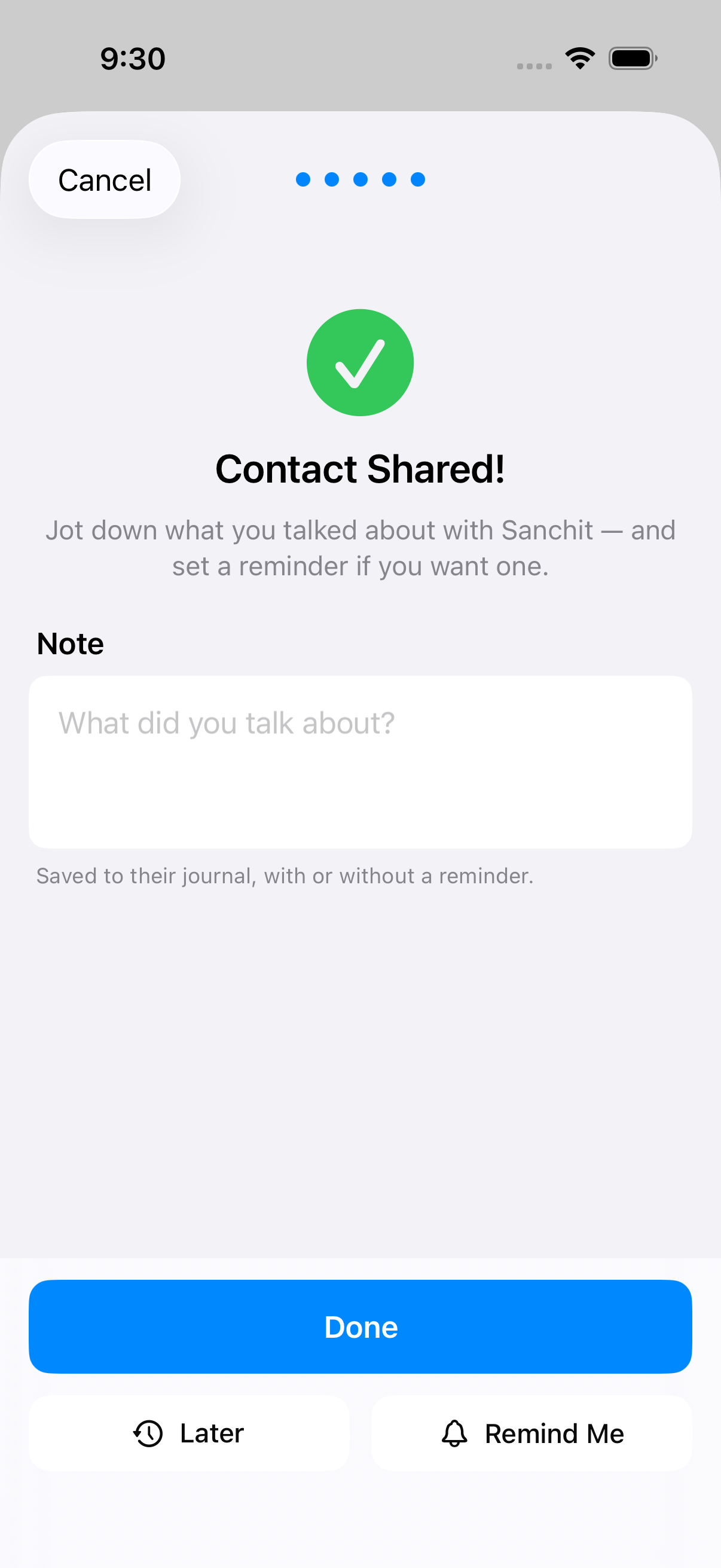
4. Jot down what you talked about — and set a reminder if you want one
Managing your ShareCards
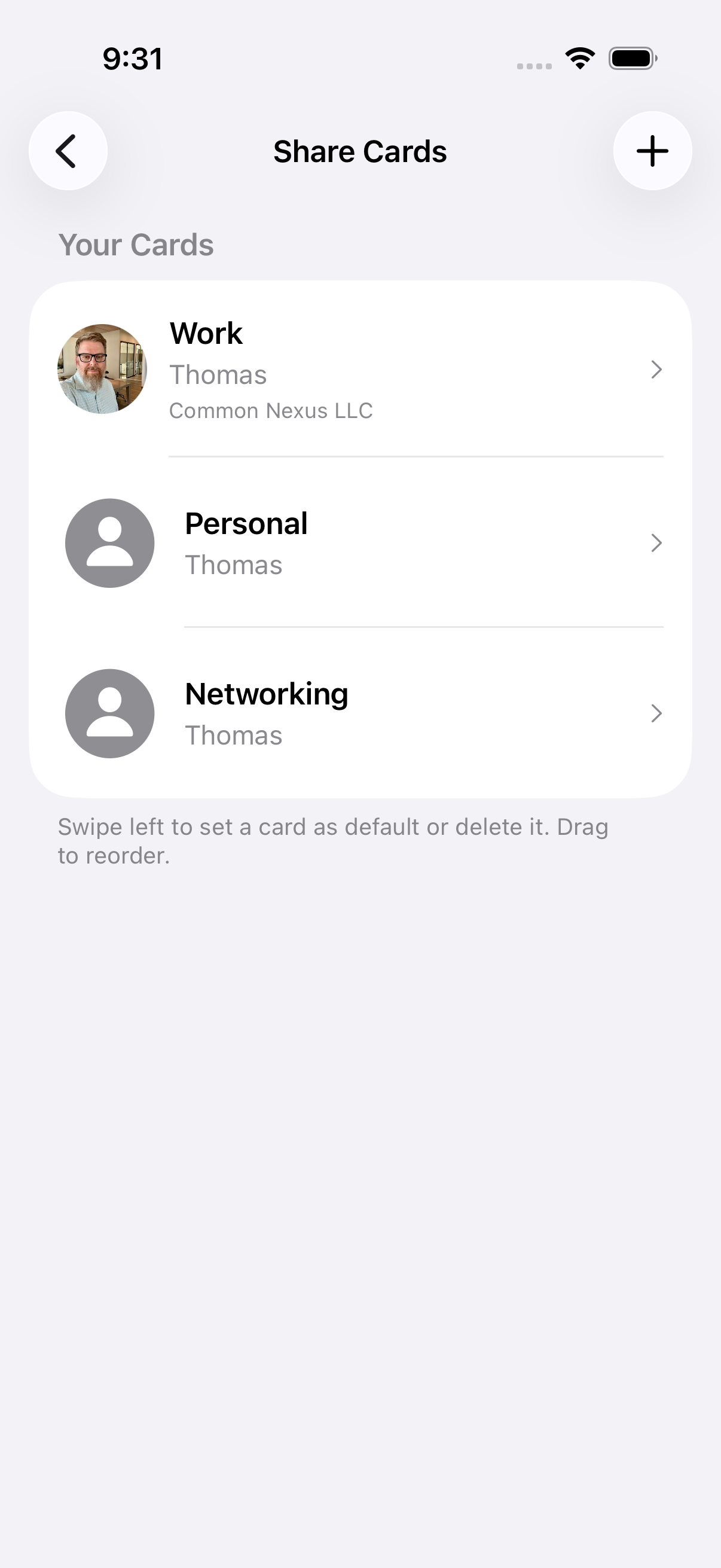
Create different ShareCards for different contexts — a professional card with your work email, a personal card with your phone number, or a card for a specific project.
Each ShareCard is fully customizable. Choose exactly which phone numbers, emails, and details to include.
How to use Companions
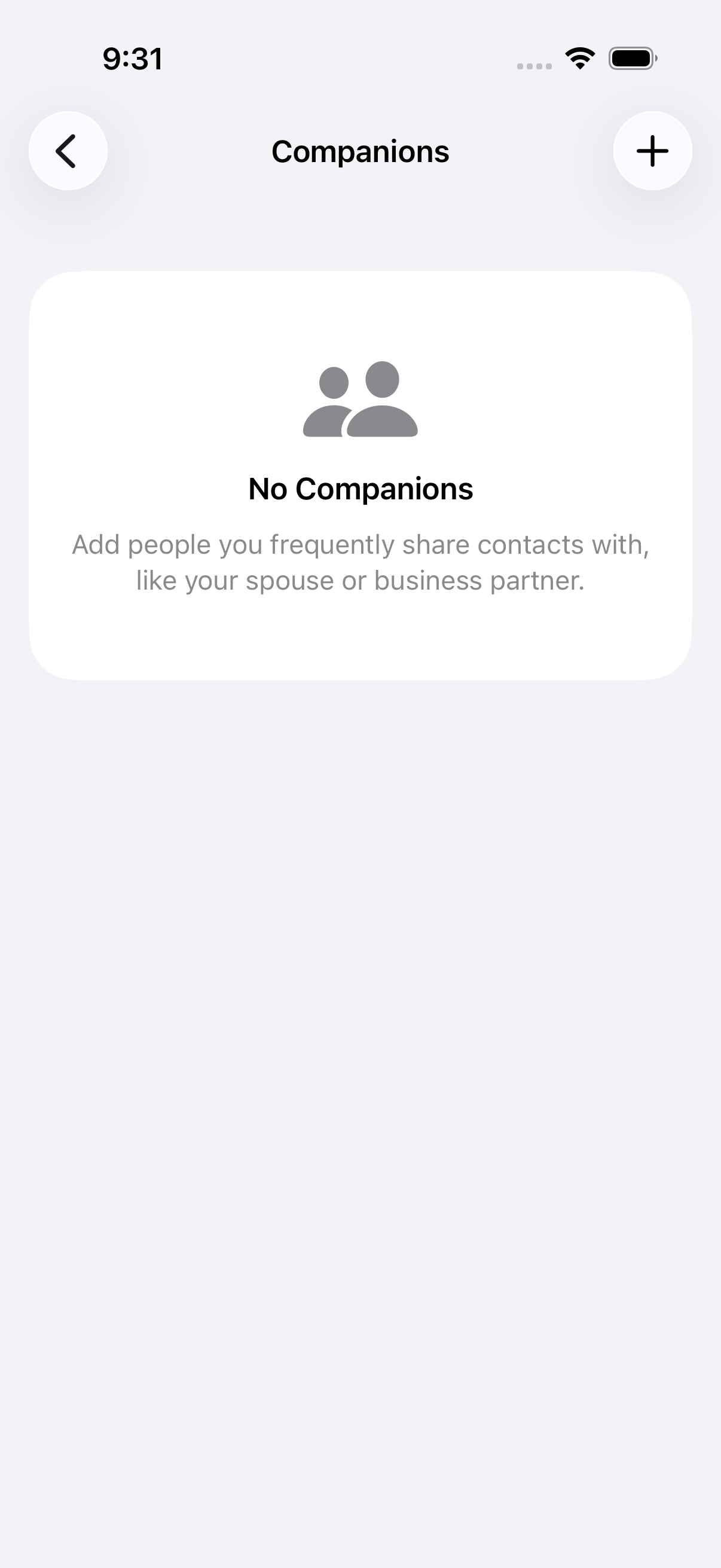
Companions are other contacts you frequently share alongside your own card. Perfect for sending your assistant's info, your business partner's card, or a team contact along with yours.
Set up companions in Settings, and they'll be available to include whenever you share.
How to check into an event
At a conference, meetup, or social event? Tap "I'm at an event…" at the top of People You've Met.
Name the event, or pick one from your calendar. Anything happening now is marked. Add a location if you want one.
The event keeps running until you end it. While it's on, a banner sits at the top of your wall: At <event name> · Tap to end. Everyone you add while it's there starts out tagged with that event, and you can type over the name on anyone.
To end it, tap the banner and confirm.
If this page doesn't answer it, email support@commonnexus.com. A person reads it.