Screens
See it before you download.
No trial and no feature gates. Every feature is in the free version, and capacity is the only thing you can buy.
Places
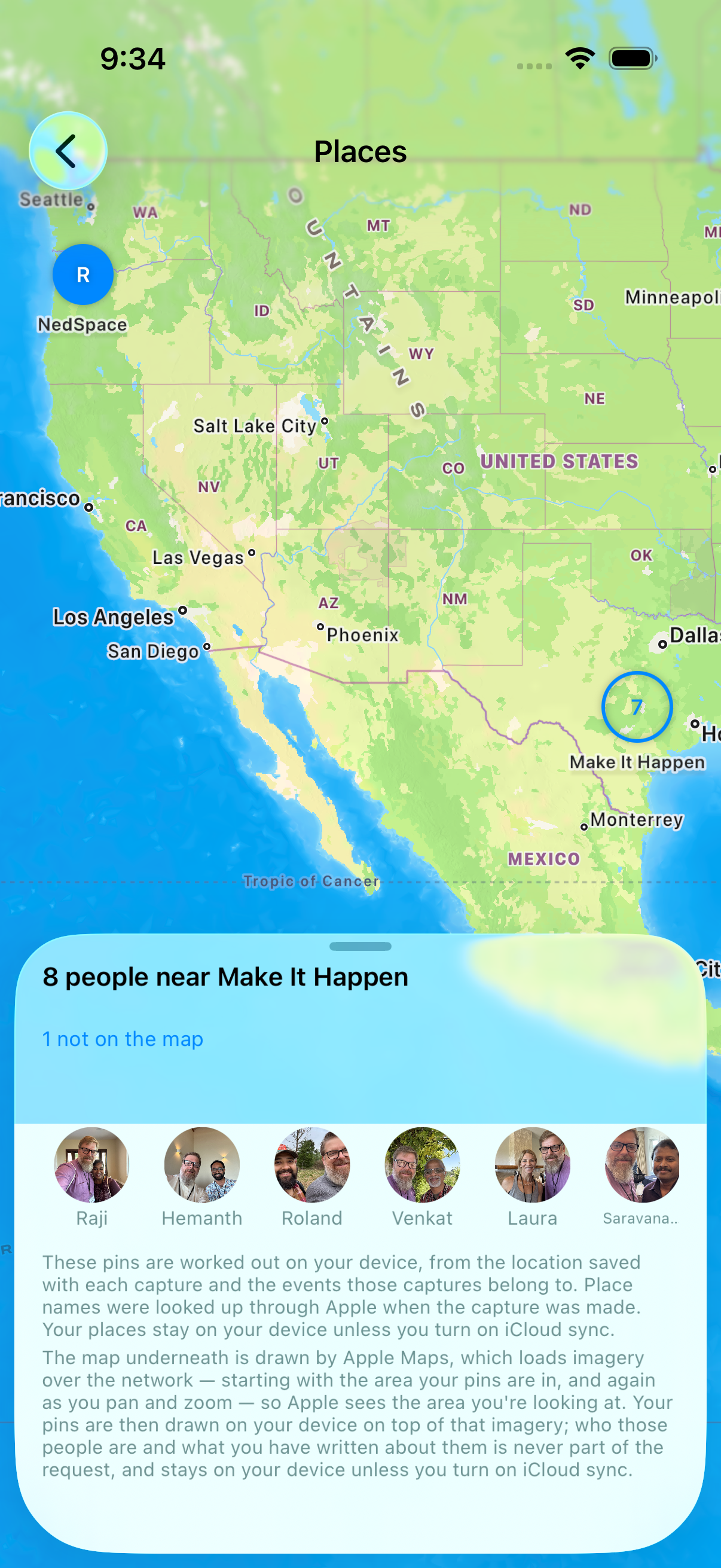
Everyone you've met, on a map.
One pin per place, not per person. Meet six people at one meetup and that is one pin with six faces behind it. Pinch out to widen the search and the list follows whatever you are looking at; tap a face and you are on that person, with the map still behind you when you come back.
People you met somewhere without a location saved are not dropped. Not on the map sits with the rest and holds them, one tap away.
Some pins come from the event rather than from the person. Those say placed from the event, so you can tell what the app recorded from what it worked out.
The pins are worked out on your device. The map underneath is Apple Maps, so opening Places sends something to Apple — exactly what, and when.
You will find Places in the menu on your wall, once there are people on it.
Ask them how they say their name
Names are easy to get wrong and awkward to ask about a second time. Record the person saying their own name, and play it back before you next see them.
The recording screen is split in half and turned around. Your side says: Turn the phone to them and ask. Their side, the right way up for them, says: Say your name, and they'll remember how to say it. Each half has a record button.
Before your first recording the app asks you, once, to ask them first. It stores nothing about that conversation, because it cannot witness one.
The recording then lives on their card. Open that person and Hear their name is there, with a delete beside it.
Practice Names
Know their name before you see them again.
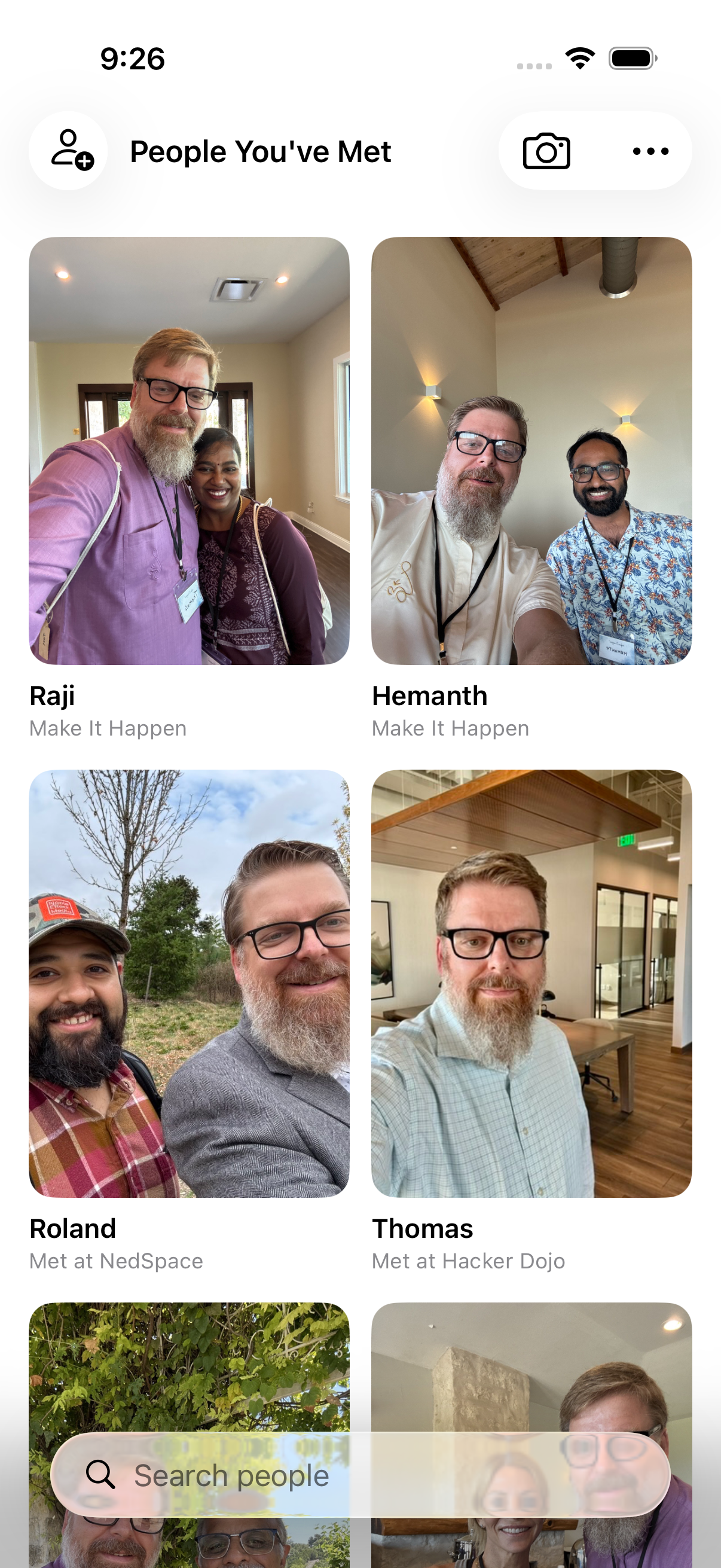
Pick an event or a place, and go through the people you met there. Not your whole address book — one gathering, the way you'd think about it before walking back into the room.
A card shows a face and asks who it is. When there is no photo it asks you to pick the name instead, and it can remind you where you met. Show the name when you want it, then say how it went: Got it, Nearly, or No. What you say decides who comes back, and when.
Nothing keeps count. Someone you keep missing just comes round sooner.
You will find Practice Names in the menu on your wall, once there are people on it.
Meeting people at an event
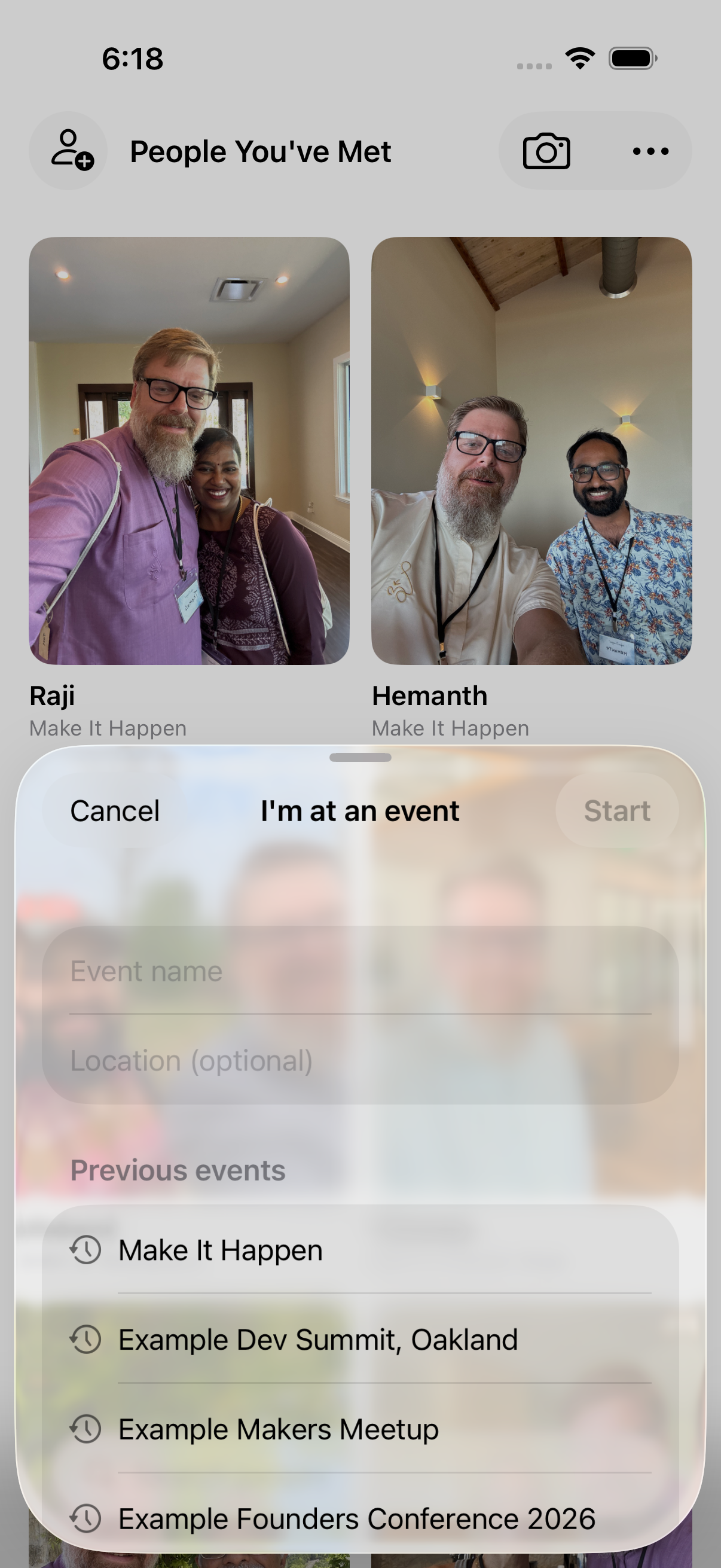
Tap I'm at an event… at the top of People You've Met. Name the event, or pick one from your calendar — anything happening now is marked Happening now. Add a location if you want one.
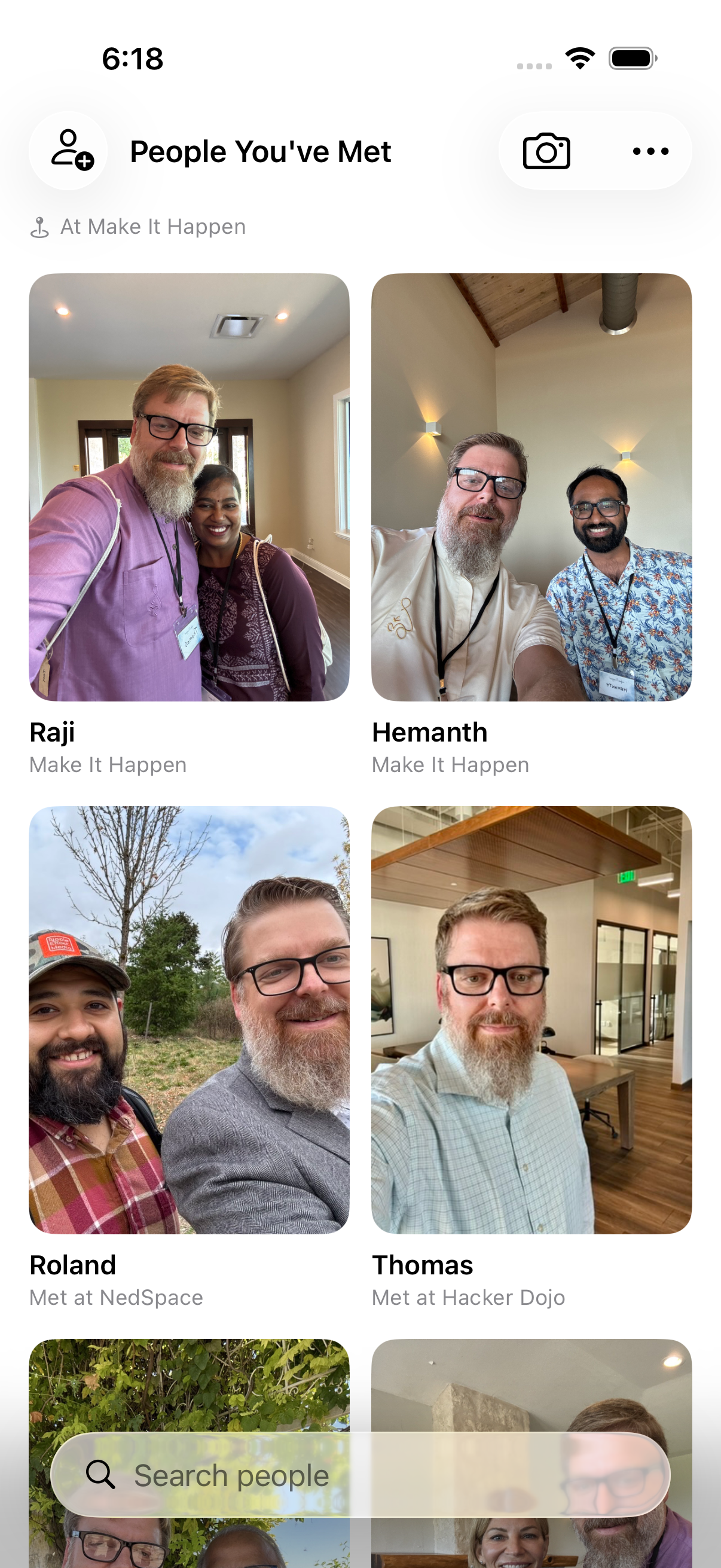
The event keeps running until you end it. While it's on, a banner sits at the top of your wall, and everyone you add while it's there starts out tagged with that event.
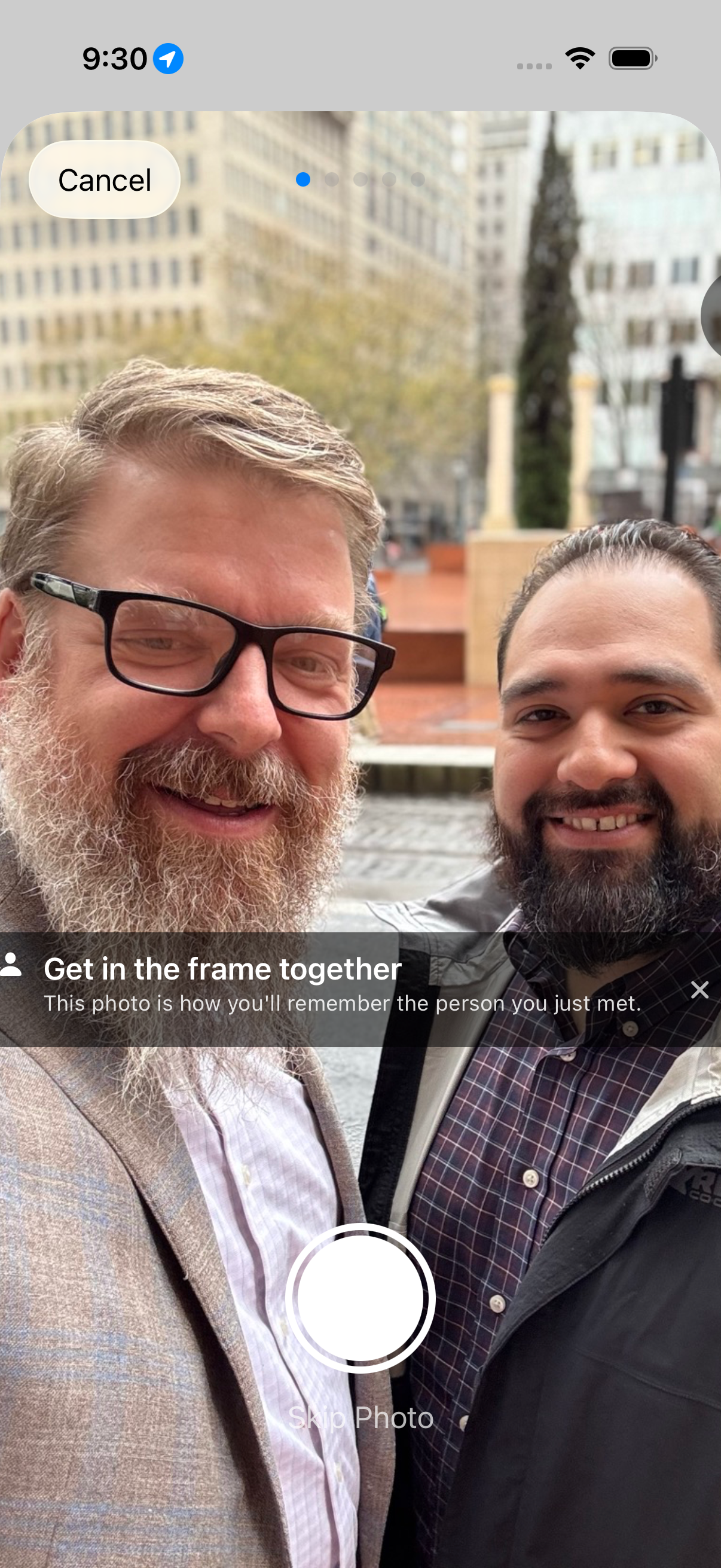
Take a selfie together
Tap the camera button in the top right and the app opens the camera so you can capture a selfie together — a visual memory of how you met. Take as many photos as you like, or skip the step entirely.
When there is no photo moment, you can add someone by hand instead.
Send them your card
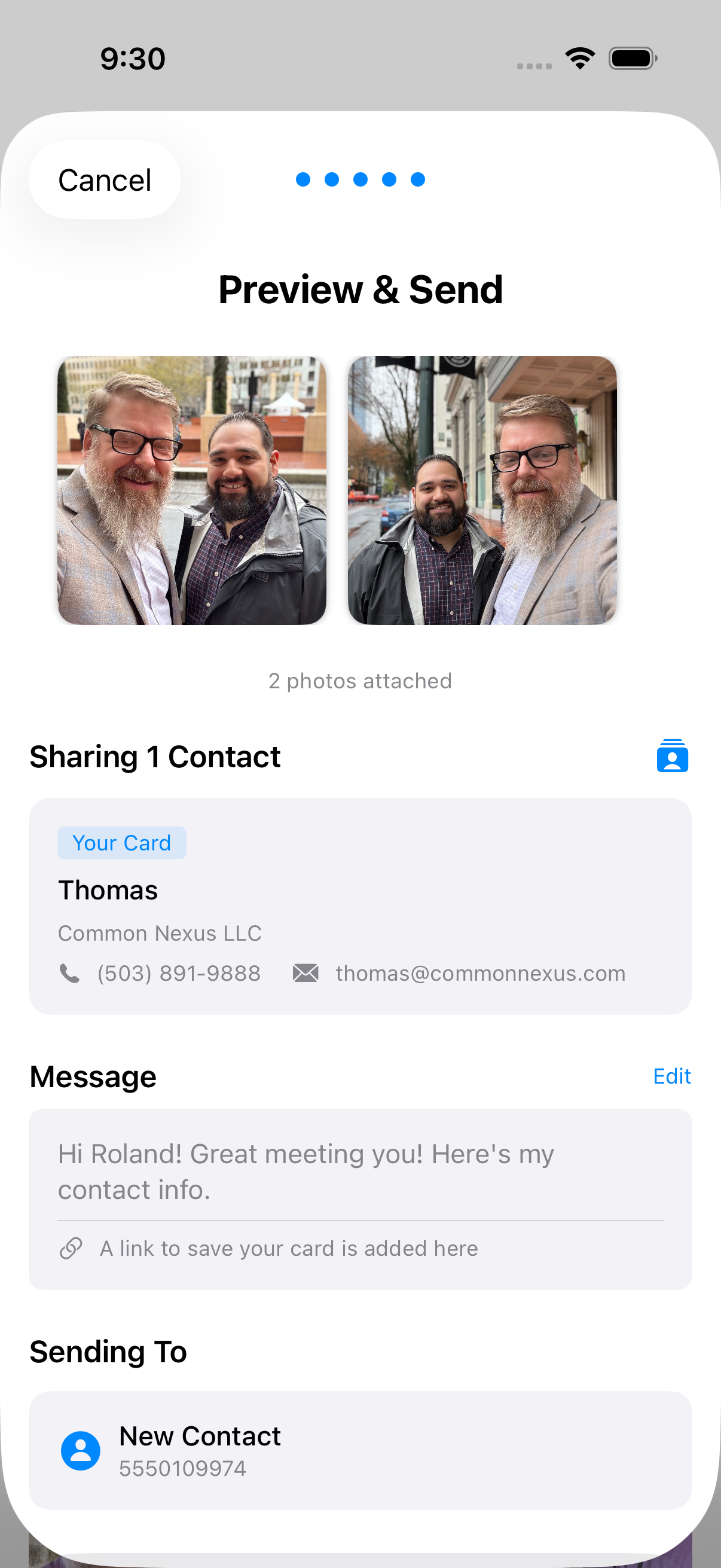
After the photo, the share flow walks you through four steps: enter their phone number, pick which ShareCard to send, preview and send, then jot down what you talked about.
Sending goes through Messages, which carries both the photo and your details to someone who is not already in your address book.
A different card for different rooms
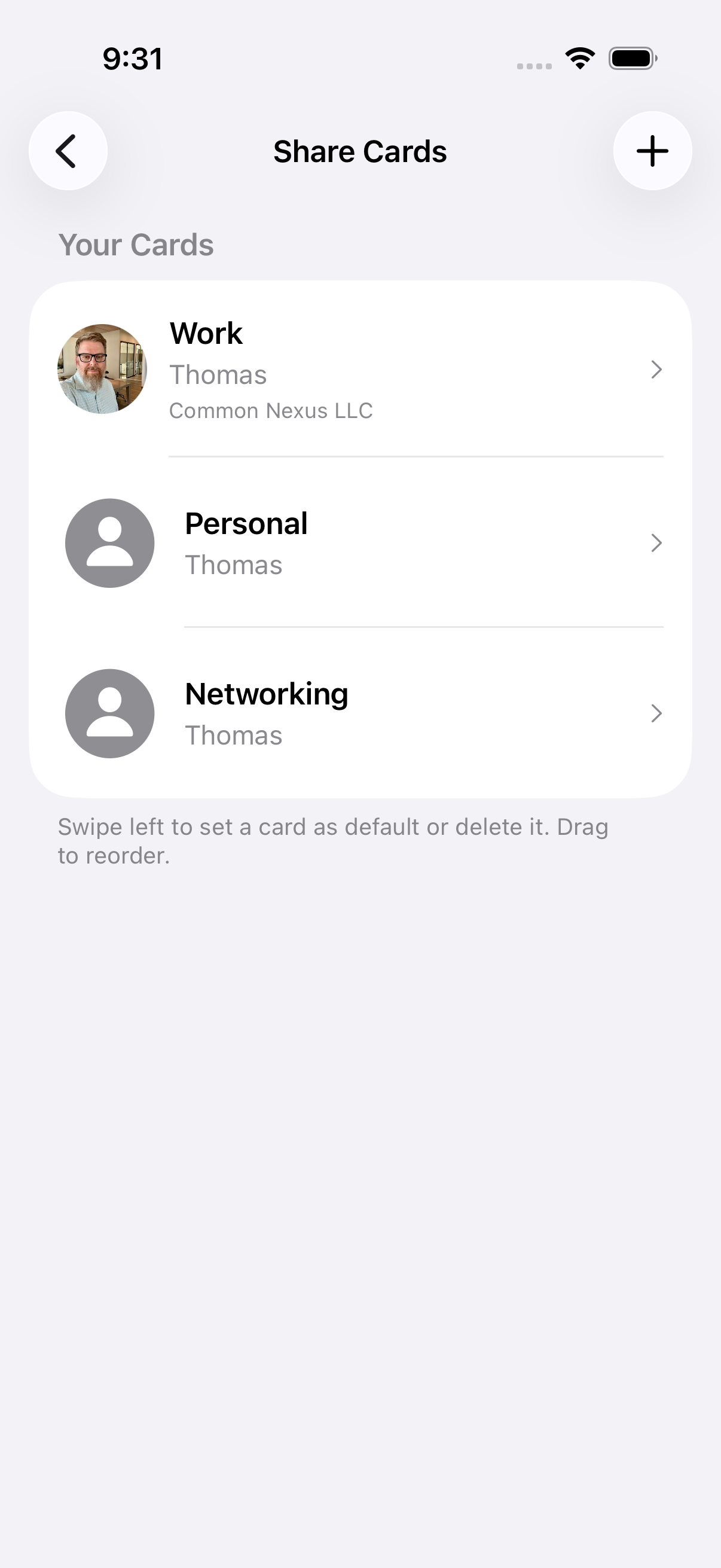
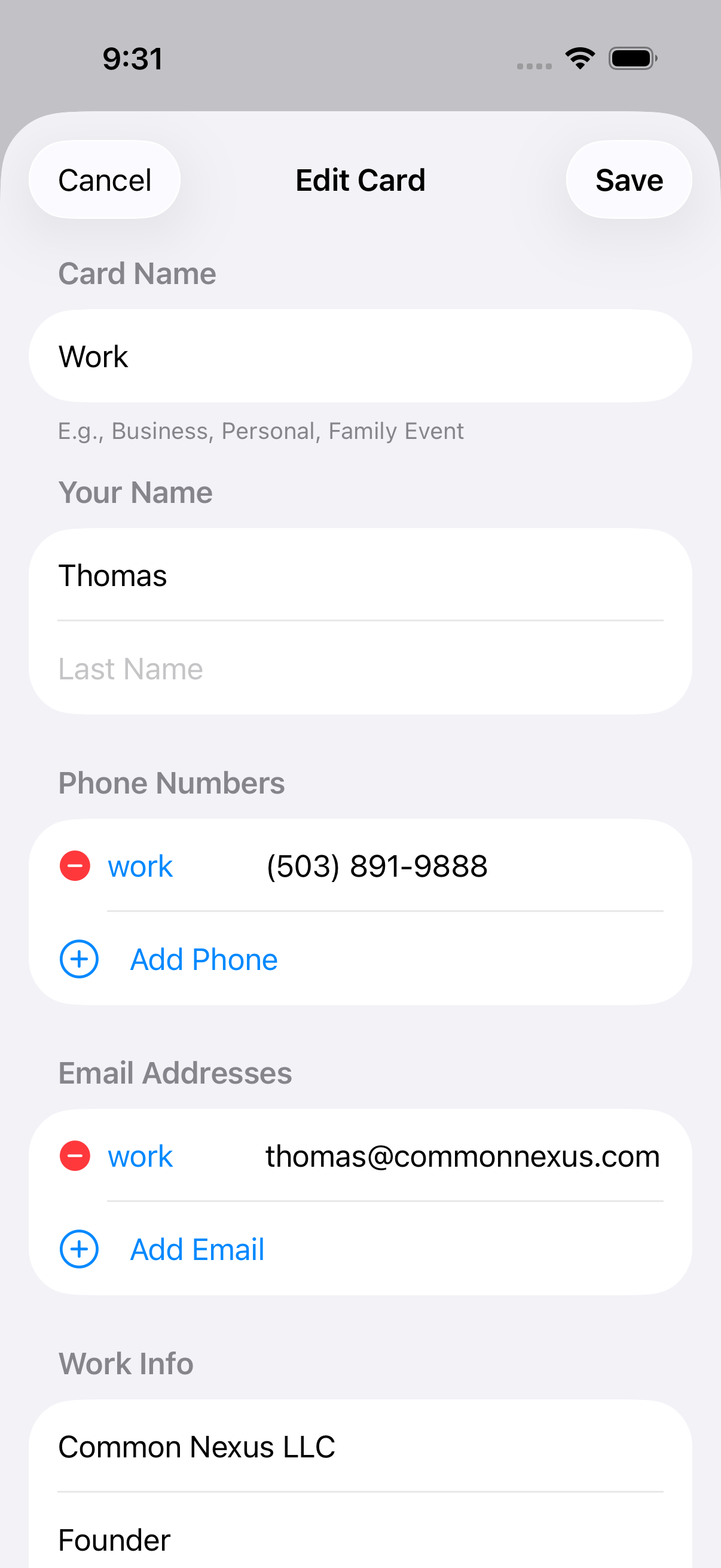
Create different ShareCards for different contexts — a professional card with your work email, a personal card with your phone number, or a card for a specific project.
Each card is yours to shape: choose exactly which phone numbers, emails and details it includes.
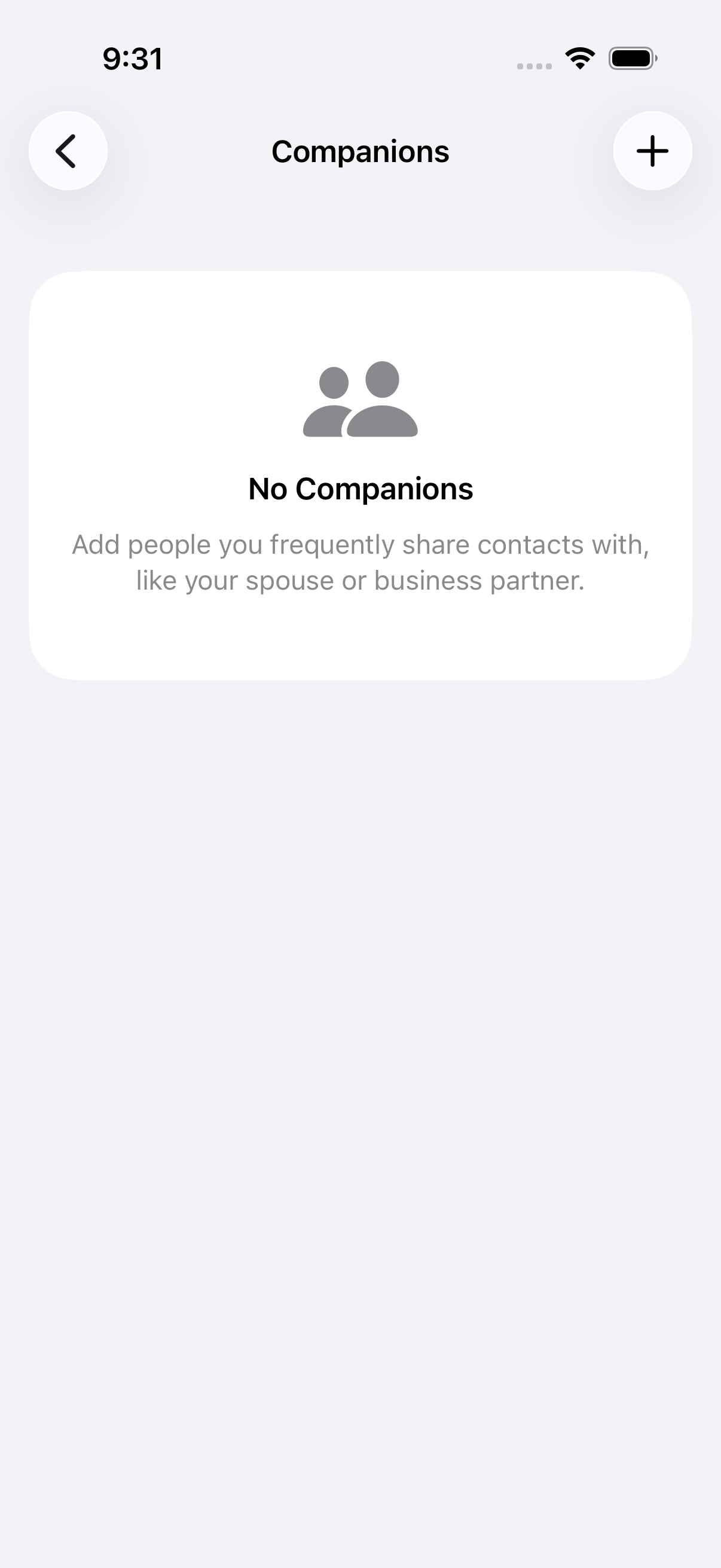
Companions
Companions are other contacts you frequently share alongside your own card — an assistant, a business partner, a team contact.
Set them up in Settings and they are available to include whenever you share.
Who introduced you
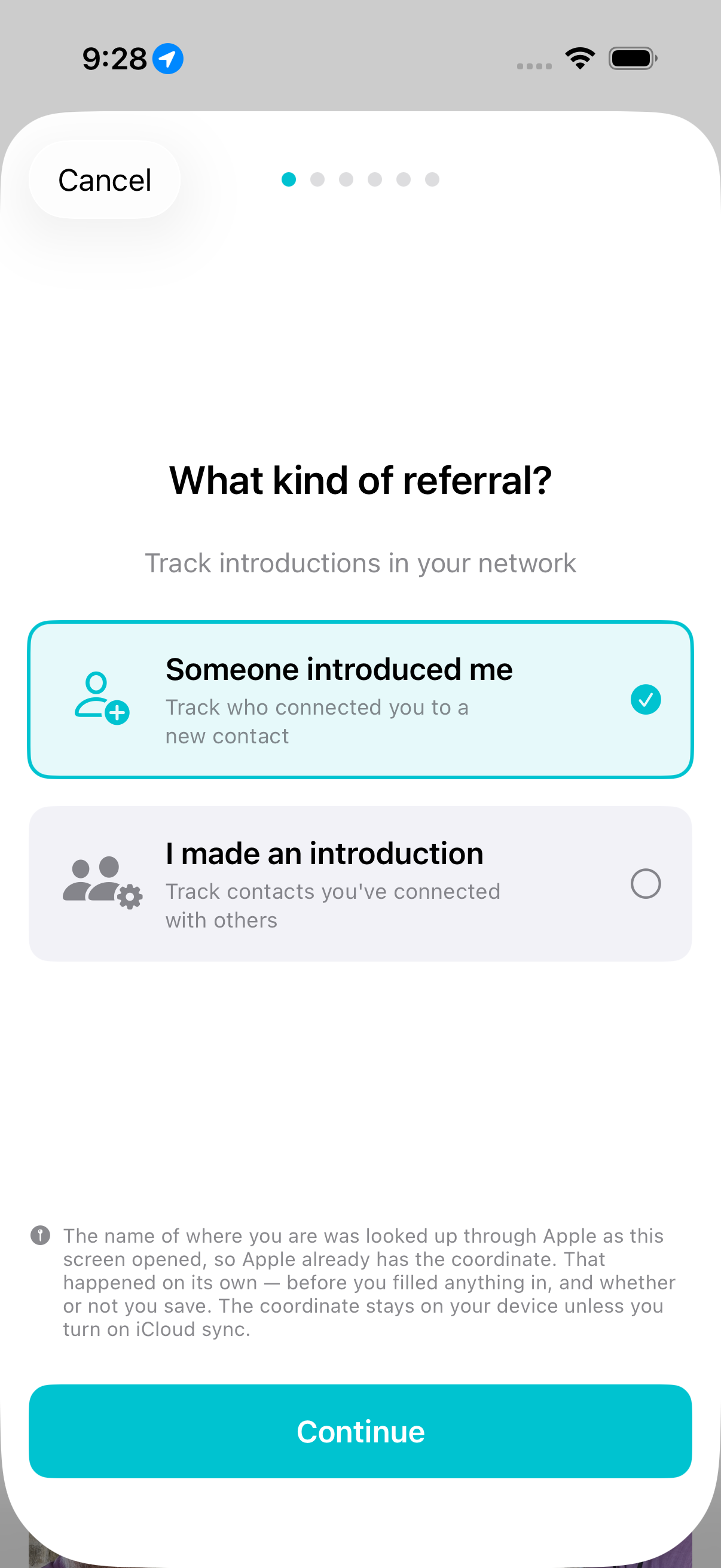
Record who introduced you to whom, in either direction — someone introduced me, or I made an introduction.
Add the context of why you were introduced, tag the opportunity, and capture a photo to remember the moment. The referral lives on both people.
A nudge before it goes cold
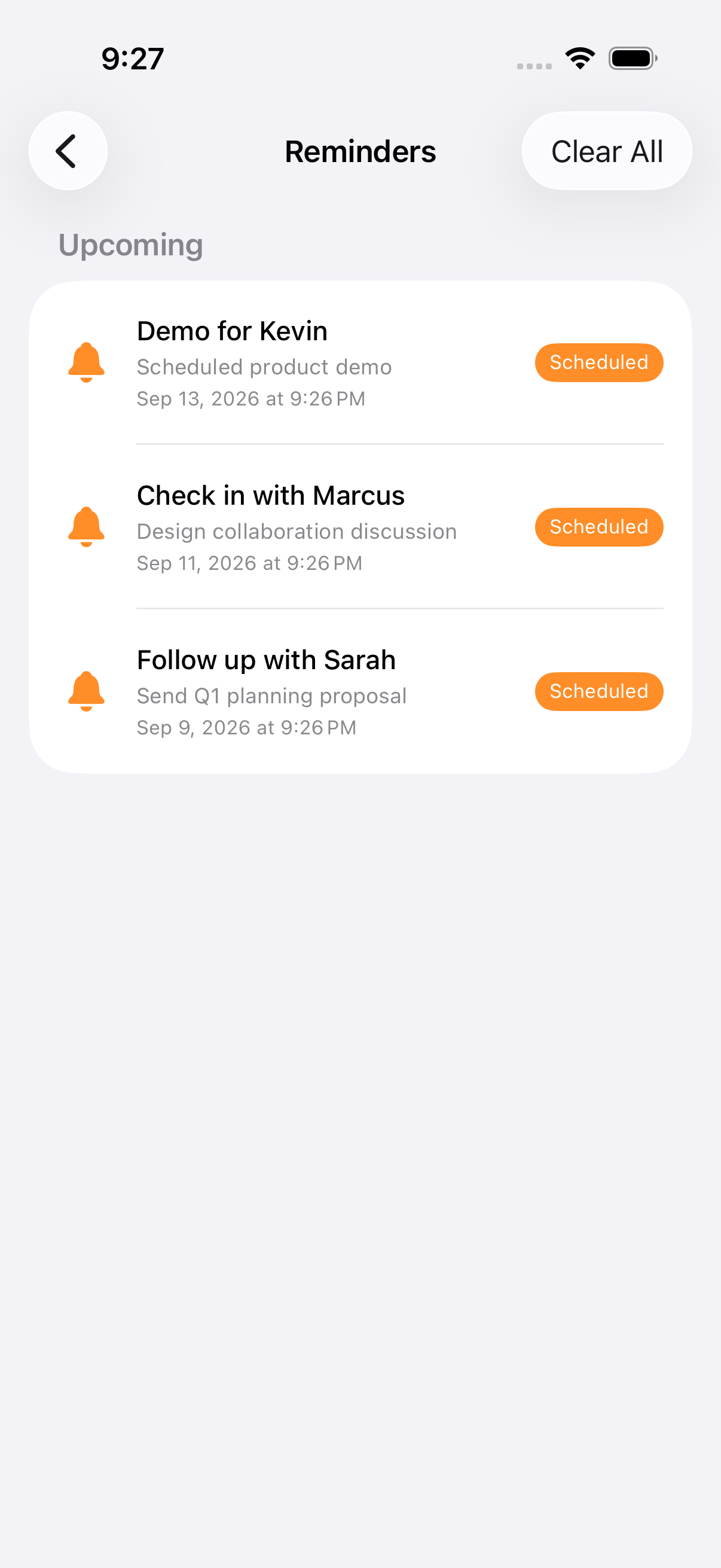
After meeting someone new the app offers a follow-up reminder, and you can set one from any person's page afterwards. Schedule it for days, weeks, or a specific date, with a note about what to follow up on.
Everything pending appears in one list, so you can see who you owe a message and when.
The log is the one you write
Nexus Contacts cannot see your calls or your messages. iOS does not offer that, and the app does not ask for it.
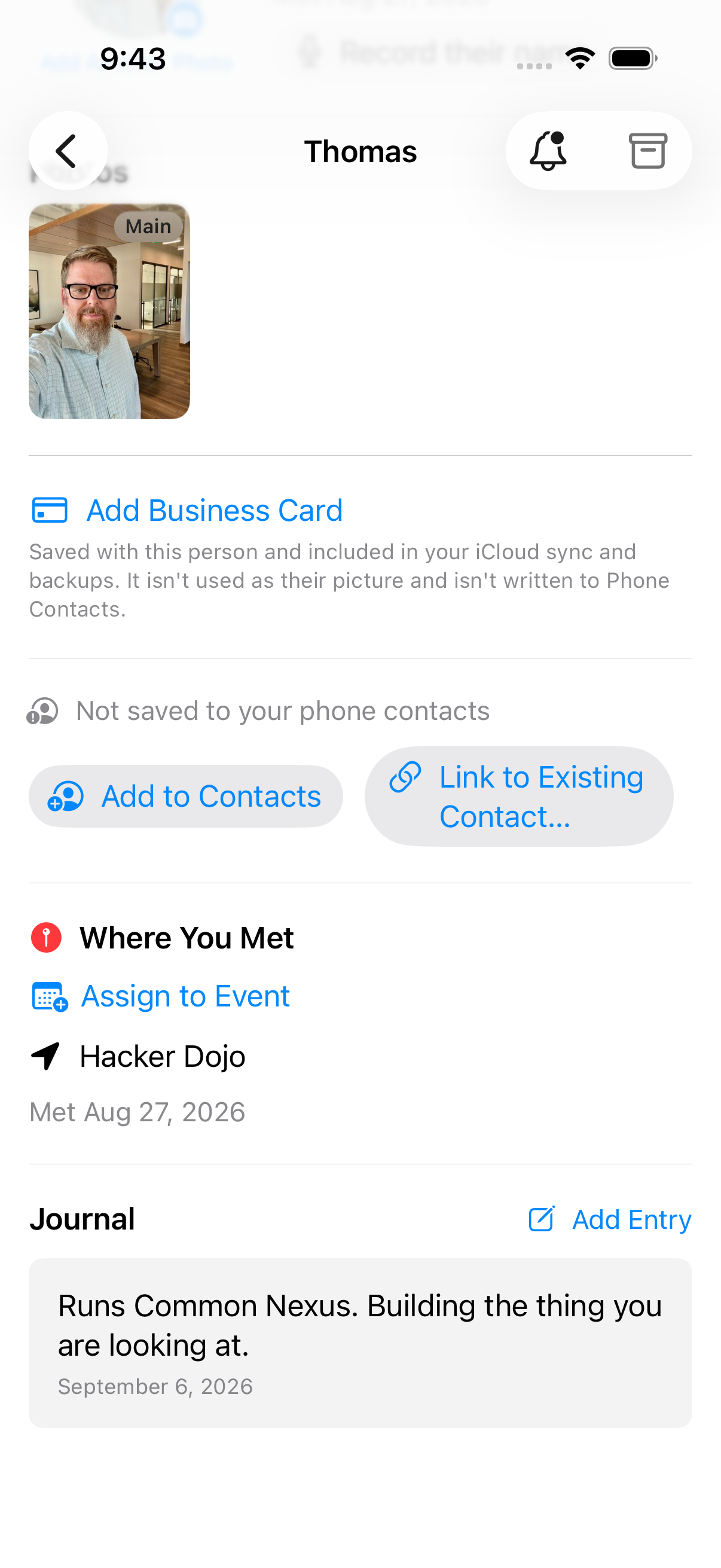
What it has is a log you write. After you talk to someone you can record it — from the app or by telling Siri — with the date, the kind of contact, how long it lasted, and anything you want to remember. It sits on that person's page.
Archive, without losing anything
Long-press a person to archive them. Archived people keep their full history and stay out of your main view until you restore them.
The app's own words for the empty state: People you archive show up here. You can bring them back anytime.
Sync is optional, and off by default
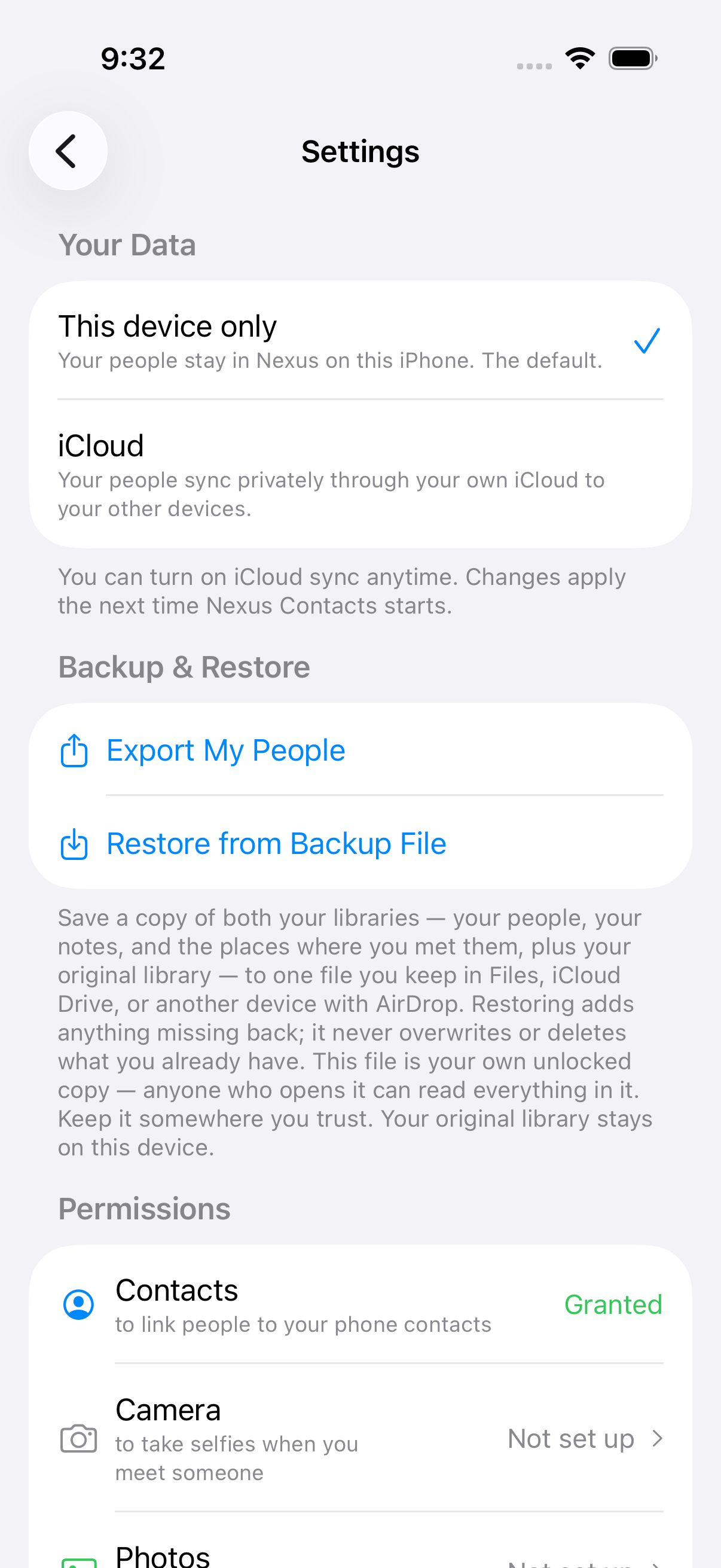
A new install keeps everything on the device. You turn iCloud sync on in Settings if you want it; if you already had it on, it stays on.
When it is on, your contacts, notes and selfie photos sync through your own iCloud account. They are never stored on Common Nexus servers, whether sync is on or off.
ShareCards and reminders do not sync between devices. They travel in your backup — Settings, then Backup & Restore, then Export My People.
Free for your first 100 people
Every feature is in the free version — capture, sharing, reminders, cards, iCloud sync, backup and export. There is no subscription and no feature to unlock.
Only people you capture with Nexus count toward the limit. Your address book never counts, however big it is.
Need more room, it is a one-time purchase. Over the limit, everything you have captured stays fully yours to view, edit, export and sync — the cap only pauses adding new people.
Ask Siri, hands free
Things you can do without opening the app. Two of them write to that person's journal, one sets a reminder, and two open the app where you left off.
- "Log a call with [name] in Nexus Contacts" — also Record meeting with… or Log interaction with…
- "Add note to [name] in Nexus Contacts" — also Note about… or Remember about…
- "Remind me to follow up with [name] in Nexus Contacts" — also Set reminder for… or Follow up with…
- "New selfie contact in Nexus Contacts" — also Take a selfie in… or Meet someone in…
- "Scan a business card in Nexus Contacts" — also Scan card in… or Read business card in…
Log a call, Add note and their variations all write to that person's journal. The logging phrases record what kind it was — a call, a text, an email, a meeting or a coffee — and the minutes if you give them. The first three take a name from your phone contacts, and Siri asks which one if the name matches more than one person.
Scan a business card
Photograph a card and the app reads it into a new contact. Position the card in frame and it does the rest.
You can also add a card to someone you already have — Add Business Card on their page keeps the card itself alongside everything else you remembered.
The reading happens on your device, through Apple's Vision framework. The card never goes to a server.
What leaves your phone
Feature by feature, what goes over the network and what does not. The privacy policy covers the legal ground; this is the plain version, next to the features it is about.
Places, and the map
The pins are worked out on your device, from the location saved with each capture. The map underneath is Apple Maps, which loads imagery over the network — so Apple sees the area you are looking at, and looks up the name of where you are as the screen opens, before you save anything. Who those people are, and anything you have written about them, is never part of that request.
Your contacts
The app starts empty. Your existing contacts do not appear on your wall. It reads the address book in narrow ways — lookups keyed to something you already did, like linking someone to a contact you already have, or picking companions to include when you share. Those lookups reach contacts from iCloud, Google, Exchange and local accounts. Nothing is copied into the app.
Recording someone's name
Before your first recording the app asks you, once, to ask them first. It stores nothing about that conversation, because it cannot witness one.
Sync, and where your people live
A new install keeps everything on the device. You turn iCloud sync on in Settings if you want it. When it is on, your contacts, notes and selfie photos sync through your own iCloud account. They are never stored on Common Nexus servers, whether sync is on or off.
Scanning a business card
The card is read on your device, through Apple's Vision framework. The image and the text it produces never go to a server.
The app itself
No analytics in the app at all.